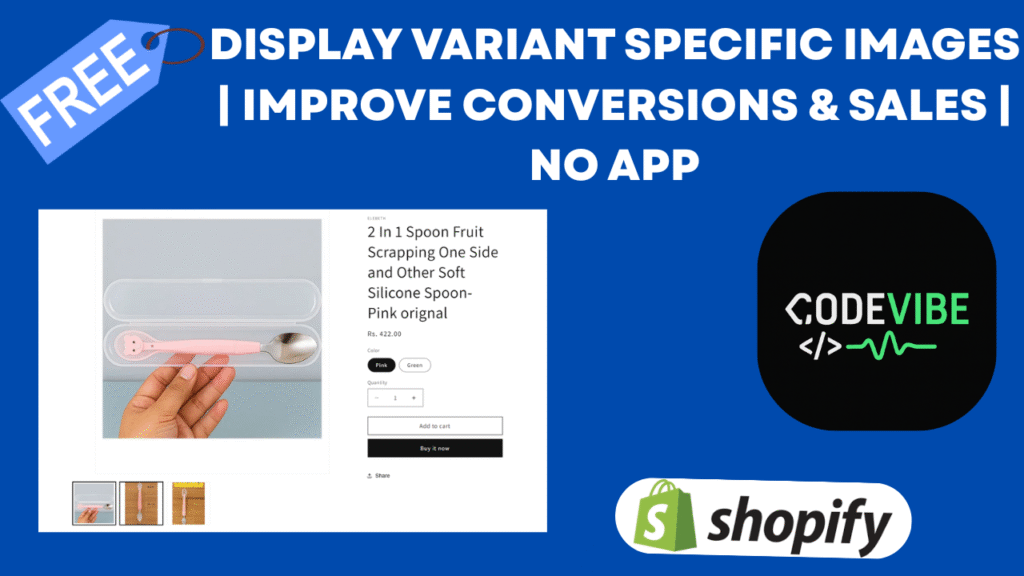

If you’re running a Shopify store, you already know how important product images are for increasing sales and improving user experience. But by default, Shopify shows all product images together—even when a customer selects a specific variant like color or size.
In this article, you’ll learn how to show variant-wise images (different images for each variant) using a simple Shopify custom code solution. This method works perfectly with the Dawn theme and can significantly improve your store’s conversion rate and SEO.
Why You Need Variant Wise Images in Shopify
Let’s understand the problem first.
When you add multiple variants to a Shopify product (for example, Pink and Green spoons), all images appear together on the product page. Even when the customer selects the Pink variant, images of Green are still visible.
This creates a confusing and poor user experience, especially when your product has 10–20 variants and multiple images per variant. The result?
- Slow page load speed
- Long scrolling experience
- Lower engagement and conversions
By displaying variant-specific images, your product page becomes cleaner, faster, and more engaging.
Benefits of Showing Variant-Wise Images
Implementing this feature can help your Shopify store in multiple ways:
✅ Better User Experience: Customers only see images relevant to the selected variant.
✅ Faster Page Load Time: Fewer unnecessary images load initially.
✅ Improved Mobile UX: Compact product galleries on smaller screens.
✅ Higher Conversion Rates: Clear visuals help customers make quicker buying decisions.
✅ SEO Advantage: Better engagement metrics improve on-page SEO signals.
Step-by-Step Guide to Add Variant Wise Images in Shopify
Follow these easy steps to set up variant-specific images using Shopify metafields and theme code customization.
Step 1: Create a Variant-Level Metafield
- Go to your Shopify Admin Panel.
- Navigate to Settings → Custom Data → Variants.
- Click Add Definition and create a new metafield:
- Name: Variant Images
- Namespace and Key: custom.variant_images
- Type: File
- Accepts Multiple Files: ✅ Yes
- File Type: Accept all
- Click Save.
Now you can attach multiple images to each variant.
Step 2: Edit Your Theme Code
- Go to Online Store → Themes → Edit Code.
- Open the product-media-gallery.liquid file (under Snippets).
- At line 63, paste the first custom code snippet.
{%- assign variant_images = product.selected_or_first_available_variant.metafields.custom.variant_images -%}
{%- if variant_images != blank -%}
{%- assign files = variant_images.value -%}
{%- for file in files -%}
<li
id=”Slide-{{ section.id }}-meta-{{ forloop.index }}”
class=”product__media-item grid__item slider__slide”
data-media-id=”{{ section.id }}-meta-{{ forloop.index }}”
>
{%- assign media_position = 1 -%}
{% render ‘product-thumbnail’,
media: file,
media_count: media_count,
position: media_position,
desktop_layout: section.settings.gallery_layout,
mobile_layout: section.settings.mobile_thumbnails,
loop: section.settings.enable_video_looping,
modal_id: section.id,
xr_button: true,
media_width: media_width,
media_fit: section.settings.media_fit,
constrain_to_viewport: section.settings.constrain_to_viewport,
lazy_load: false
%}
</li>
{%- endfor -%}
{%- endif -%}
4. Scroll down to find the {% for media in product.media %} loop.
5.Replace that section with the updated code provided.
{%- assign variant_images = product.selected_or_first_available_variant.metafields.custom.variant_images -%}
{% if variant_images != blank and variant_images.value != blank %}
{%- assign files = variant_images.value -%}
{%- for file in files -%}
{%- capture media_index -%}{{ forloop.index }}{%- endcapture -%}
<li
id=”Slide-Thumbnails-{{ section.id }}-{{ forloop.index }}”
class=”thumbnail-list__item slider__slide”
data-target=”{{ section.id }}-meta-{{ forloop.index }}”
data-media-position=”{{ media_index }}”
>
{%- capture thumbnail_id -%}
Thumbnail-{{ section.id }}-meta-{{ forloop.index }}
{%- endcapture -%}
<button
class=”thumbnail global-media-settings global-media-settings–no-shadow”
aria-label=”Variant image {{ forloop.index }}”
{% if forloop.first %}
aria-current=”true”
{% endif %}
aria-controls=”GalleryViewer-{{ section.id }}”
aria-describedby=”{{ thumbnail_id }}”
>
{{
file
| image_url: width: 416
| image_tag:
loading: ‘lazy’,
sizes: sizes,
widths: ’54, 74, 104, 162, 208, 324, 416′,
id: thumbnail_id,
alt: media.alt
| escape
}}
</button>
</li>
{%- endfor -%}
<script>
jQuery(function($) {
$(‘body’).on(‘change’, ‘select[name=”id”], input[name=”id”]’, function() {
setTimeout(function() {
var currentVariantId = $(‘input[name=”id”], select[name=”id”]’).val();
var initialVariantId = {{ product.selected_or_first_available_variant.id | json }};
if (currentVariantId && currentVariantId != initialVariantId) {
location.reload();
}
}, 100);
});
});
</script>
{% else %}
{%- for media in product.media -%}
{%- unless media.id == product.selected_or_first_available_variant.featured_media.id -%}
{%- liquid
capture media_index
if media.media_type == ‘model’
increment model_index
elsif media.media_type == ‘video’ or media.media_type == ‘external_video’
increment video_index
elsif media.media_type == ‘image’
increment image_index
endif
endcapture
assign media_index = media_index | plus: 1
-%}
<li
id=”Slide-Thumbnails-{{ section.id }}-{{ forloop.index }}”
class=”thumbnail-list__item slider__slide{% if section.settings.hide_variants and variant_images contains media.src %} thumbnail-list_item–variant{% endif %}”
data-target=”{{ section.id }}-{{ media.id }}”
data-media-position=”{{ media_index }}”
>
{%- if media.media_type == ‘model’ -%}
<span class=”thumbnail__badge” aria-hidden=”true”>
<span class=”svg-wrapper”>
{{- ‘icon-3d-model.svg’ | inline_asset_content -}}
</span>
</span>
{%- elsif media.media_type == ‘video’ or media.media_type == ‘external_video’ -%}
<span class=”thumbnail__badge” aria-hidden=”true”>
<span class=”svg-wrapper”>
{{- ‘icon-play.svg’ | inline_asset_content -}}
</span>
</span>
{%- endif -%}
{%- capture thumbnail_id -%}
Thumbnail-{{ section.id }}-{{ forloop.index }}
{%- endcapture -%}
<button
class=”thumbnail global-media-settings global-media-settings–no-shadow”
aria-label=”{%- if media.media_type == ‘image’ -%}{{ ‘products.product.media.load_image’ | t: index: media_index }}{%- elsif media.media_type == ‘model’ -%}{{ ‘products.product.media.load_model’ | t: index: media_index }}{%- elsif media.media_type == ‘video’ or media.media_type == ‘external_video’ -%}{{ ‘products.product.media.load_video’ | t: index: media_index }}{%- endif -%}”
{% if media == product.selected_or_first_available_variant.featured_media
or product.selected_or_first_available_variant.featured_media == null
and forloop.index == 1
%}
aria-current=”true”
{% endif %}
aria-controls=”GalleryViewer-{{ section.id }}”
aria-describedby=”{{ thumbnail_id }}”
>
{{
media.preview_image
| image_url: width: 416
| image_tag:
loading: ‘lazy’,
sizes: sizes,
widths: ’54, 74, 104, 162, 208, 324, 416′,
id: thumbnail_id,
alt: media.alt
| escape
}}
</button>
</li>
{%- endunless -%}
{%- endfor -%}
{% endif %}
6.Save the file.
This code ensures only the selected variant’s images are displayed dynamically.
Step 3: Assign Images to Variants
- Open your Product in the Shopify Admin.
- Click on any Variant (e.g., Pink or Green).
- Scroll down to the Metafields section.
- Upload or select the images you want to show for that variant.
- Click Save.
Repeat for each variant.
Final Thoughts
Adding variant-specific images in Shopify is one of the best custom features you can implement in 2025. It enhances the shopping experience, improves conversions, and strengthens SEO — all without third-party apps.
If you’d like this feature implemented on your Shopify store, feel free to contact us. We’ll integrate it quickly and make sure it’s fully optimized for your theme.Test Your Product Page