
Introduction
In the competitive world of e-commerce, engaging customers and increasing sales require innovative strategies. One powerful way to enhance your Shopify store is by implementing a Shopify Bundle Builder. This custom feature allows customers to create their own product bundles, offering discounts (e.g., 30% off for three products) to incentivize purchases. Not only does this improve the customer experience, but it also boosts your store’s average order value (AOV) and conversion rates.
In this comprehensive guide, we’ll walk you through the step-by-step process of creating a custom bundle builder in Shopify, as demonstrated in our recent YouTube video. Whether you’re a beginner or an experienced Shopify store owner, this tutorial will help you implement this feature using custom code and Shopify’s admin settings. Plus, we’ll explore the benefits of product bundling and why it’s a must-have for your e-commerce business in 2025.
What is a Shopify Bundle Builder?
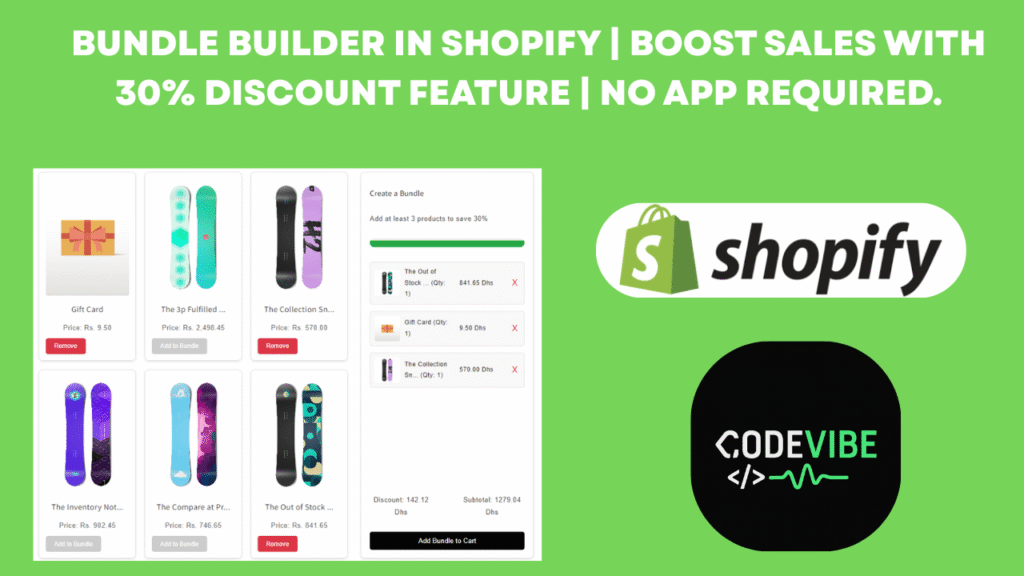
A Shopify Bundle Builder is a custom feature that lets customers select multiple products (e.g., three items) to create a personalized bundle, often with an attractive discount. For example, as shown in the video, customers can add three products to a bundle and receive a 30% discount, which is automatically applied at checkout. The feature includes a progress bar to indicate bundle completion and disables further product additions once the bundle is complete, ensuring a seamless user experience.
This feature is perfect for:
- Increasing sales: Encouraging customers to buy more products to avail discounts.
- Enhancing customer experience: Offering flexibility to choose preferred products.
- Boosting engagement: Creating an interactive shopping process with visual elements like progress bars.
Why Add a Custom Bundle Builder to Your Shopify Store?
Before diving into the setup process, let’s explore why a custom bundle builder is a game-changer for your Shopify store:
- Higher Average Order Value (AOV): By incentivizing customers to buy multiple products, you increase the total amount spent per order.
- Improved Conversion Rates: Discounts like 30% off make customers more likely to complete their purchases.
- Enhanced Customer Experience: Allowing customers to curate their own bundles adds a personalized touch, increasing satisfaction and loyalty.
- Competitive Edge: Unique features like a bundle builder set your store apart in the crowded e-commerce market.
- Upselling Opportunities: Showcase trending or high-margin products in the bundle builder to drive sales.
- Data Insights: Track which products are frequently bundled to understand customer preferences and optimize inventory.
With e-commerce trends in 2025 leaning toward personalization and interactive shopping experiences, a Shopify bundle builder is a must-have feature for store owners looking to stay ahead.
Step-by-Step Guide to Creating a Shopify Bundle Builder
Follow these detailed steps to implement a custom bundle builder in your Shopify store, as outlined in the video.
Step 1: Access Your Shopify Admin
- Log in to your Shopify admin panel.
- Navigate to Online Store from the left-hand menu.
- Click on Themes to view your active theme and customization options.
This is where you’ll start making changes to your store’s theme to add the bundle builder feature.
Step 2: Open the Code Editor
- In the Themes section, locate your active theme.
- Click the three dots (…) next to your theme and select Edit Code.
- This will open the Shopify code editor, where you can add and modify code for your store.
The code editor is the backbone of your customization, allowing you to add new sections and functionality to your Shopify store.
Step 3: Create a New Section for the Bundle Builder
- In the code editor, locate the Sections folder in the left-hand sidebar.
- Click on Sections and select Add a new section.
- Name the section something descriptive, like custom-bundle-builder.liquid.
- Copy and paste the bundle builder code into this section.
<div class=”bundle-builder-custom bundle-{{ section.id }}” data-min-quantity=”3″ data-discount-percent=”30″>
<h2 class=”bundle-heading”>Buy 3 and Save 30%</h2>
<div class=”bundle-container”>
<div class=”product-list”>
{%- for block in section.blocks -%}
{%- assign product = block.settings.product -%}
<a href=”{{ product.url | within: collection }}” class=”product-item-link”>
<div class=”product-item” data-product-id=”{{ product.id }}” data-price=”{{ product.price | money_without_currency }}” data-variant-id=”{{ product.selected_or_first_available_variant.id }}”>
<img src=”{{ product.featured_image | img_url: ‘master’ }}” alt=”{{ product.title }}”>
<h3>{{ product.title | truncate:20}}</h3>
<p>Price: {{ product.price | money }} </p>
<button class=”add-to-bundle-btn” data-product-id=”{{ product.id }}”>Add to Bundle</button>
<button class=”remove-from-bundle” data-product-id=”{{ product.id }}” style=”display: none;”>Remove</button>
</div>
</a>
{%- endfor -%}
</div>
<div class=”bundle-panel”>
<h3>Create a Bundle</h3>
<p>Add at least 3 products to save 30%</p>
<div class=”progress-bar”>
<div class=”progress-text”></div>
<div class=”progress-fill” id=”progress-fill”></div>
</div>
<div class=”bundle-items” id=”bundle-items”>
<!– Empty state –>
<div class=”empty-bundle” id=”empty-bundle”>
<img src=”https://cdn.shopify.com/s/files/1/0907/6611/5113/files/download_1_fad3b368-36d0-4005-98a2-bf48c27bb0d9.png?v=1758791403″ alt=”Empty Bundle” style=”width: 100px; height: auto;”>
<p>Your bundle is empty</p>
</div>
</div>
<div class=”bundle-summary”>
<div class=”summary-details”>
<p>Discount: <span id=”bundle-discount”>0.00 Dhs</span></p>
<p>Subtotal: <span id=”bundle-total”>0.00 Dhs</span></p>
</div>
<button id=”add-bundle-to-cart” disabled>Add Bundle to Cart</button>
</div>
</div>
</div>
</div>
{% schema %}
{
“name”: “Custom Bundle Builder”,
“tag”: “section”,
“class”: “section”,
“blocks”: [
{
“type”: “product”,
“name”: “Product”,
“settings”: [
{
“type”: “product”,
“id”: “product”,
“label”: “Select Product”
}
]
}
],
“presets”: [
{
“name”: “Custom Bundle Builder”,
“blocks”: [
{
“type”: “product”
},
{
“type”: “product”
},
{
“type”: “product”
},
{
“type”: “product”
},
{
“type”: “product”
}
]
}
]
}
{% endschema %}
<style>
.bundle-{{ section.id }} {
max-width: 1200px;
margin: 0 auto;
padding: 20px;
font-family: Arial, sans-serif;
}
.bundle-{{ section.id }} .bundle-heading {
text-align: center;
font-size: 2em;
color: #333;
background: #f5f5f5;
padding: 15px;
border-radius: 8px;
margin-bottom: 20px;
}
.bundle-{{ section.id }} .bundle-container {
display: flex;
gap: 30px;
flex-direction: row;
}
.bundle-{{ section.id }} .product-list {
flex: 2;
display: grid;
grid-template-columns: repeat(3, 1fr);
gap: 20px;
}
.bundle-{{ section.id }} .product-item-link {
text-decoration: none; /* Remove default link underline */
color: inherit; /* Inherit text color */
display: block; /* Ensure the link covers the entire card */
}
.bundle-{{ section.id }} .product-item {
border: 1px solid #e0e0e0;
padding: 15px;
text-align: center;
border-radius: 10px;
box-shadow: 0 2px 5px rgba(0,0,0,0.1);
transition: transform 0.2s;
}
.bundle-{{ section.id }} .product-item:hover {
transform: translateY(-5px);
}
.bundle-{{ section.id }} .product-item img {
max-width: 100%;
height: 275px;
object-fit: cover;
border-radius: 5px;
}
.bundle-{{ section.id }} .product-item h3 {
font-size: 1.2em;
margin: 10px 0;
color: #333;
}
.bundle-{{ section.id }} .product-item p {
font-size: 1em;
color: #666;
margin-bottom: 10px;
}
.bundle-{{ section.id }} .add-to-bundle-btn,
.bundle-{{ section.id }} .remove-from-bundle {
background: #28a745;
color: white;
border: none;
padding: 10px 20px;
cursor: pointer;
border-radius: 5px;
font-size: 0.9em;
transition: background 0.3s;
}
.bundle-{{ section.id }} .add-to-bundle-btn:hover,
.bundle-{{ section.id }} .remove-from-bundle:hover {
background: #218838;
}
.bundle-{{ section.id }} .add-to-bundle-btn:disabled {
background: #ccc;
cursor: not-allowed;
}
.bundle-{{ section.id }} .remove-from-bundle {
background: #dc3545;
}
.bundle-{{ section.id }} .remove-from-bundle:hover {
background: #c82333;
}
.bundle-{{ section.id }} .bundle-panel {
flex: 1;
border: 1px solid #e0e0e0;
padding: 20px;
border-radius: 10px;
background: #fff;
box-shadow: 0 2px 5px rgba(0,0,0,0.1);
display: flex;
flex-direction: column;
justify-content: space-between;
}
.bundle-{{ section.id }} .progress-bar {
background: #f0f0f0;
height: 20px;
margin: 15px 0;
border-radius: 10px;
overflow: hidden;
}
.bundle-{{ section.id }} .progress-text {
text-align: center;
font-size: 0.9em;
color: #666;
margin-bottom: 5px;
}
.bundle-{{ section.id }} .progress-fill {
height: 100%;
background: #ccc; /* Default color (grey for 0%) */
width: 0%;
transition: width 0.3s ease, background 0.3s ease;
}
.bundle-{{ section.id }} .bundle-items {
margin: 20px 0;
min-height: 100px;
flex-grow: 1;
}
.bundle-{{ section.id }} .empty-bundle {
text-align: center;
color: #888;
padding: 20px;
margin-top: 139px;
}
.bundle-{{ section.id }} .bundle-item {
display: flex;
align-items: center;
justify-content: space-between;
margin-bottom: 15px;
padding: 10px;
background: #f9f9f9;
border: 1px solid #e0e0e0;
border-radius: 5px;
}
.bundle-{{ section.id }} .bundle-item img {
width: 60px;
height: 60px;
object-fit: cover;
border-radius: 5px;
}
.bundle-{{ section.id }} .bundle-item span {
flex: 1;
margin: 0 10px;
font-size: 0.9em;
color: #333;
}
.bundle-{{ section.id }} .bundle-item .delete-item {
background: none;
border: none;
color: #dc3545;
cursor: pointer;
font-size: 1.2em;
padding: 0 5px;
}
.bundle-{{ section.id }} .bundle-summary {
text-align: center;
margin-top: 20px;
}
.bundle-{{ section.id }} .summary-details {
margin-bottom: 15px;
display: flex;
justify-content: center;
align-items: center;
gap: 64px;
}
.bundle-{{ section.id }} #add-bundle-to-cart {
background: rgb(0, 0, 0);
color: #ffffff;
padding: 12px 20px;
border: none;
border-radius: 5px;
cursor: pointer;
width: 100%;
font-size: 1em;
transition: background 0.3s;
}
.bundle-{{ section.id }} #add-bundle-to-cart:hover {
background: #e0a800;
}
.bundle-{{ section.id }} #add-bundle-to-cart:disabled {
background: #ccc;
cursor: not-allowed;
}
/* Mobile styles */
@media (max-width: 768px) {
.bundle-{{ section.id }} .bundle-container {
flex-direction: column;
}
.bundle-{{ section.id }} .product-list {
grid-template-columns: repeat(2, 1fr) !important;
gap: 15px;
}
.bundle-{{ section.id }} .product-item img {
height: 234px !important;
}
.bundle-{{ section.id }} .product-item h3 {
font-size: 1em;
}
.bundle-{{ section.id }} .product-item p {
font-size: 0.9em;
}
.bundle-{{ section.id }} .add-to-bundle-btn,
.bundle-{{ section.id }} .remove-from-bundle {
padding: 8px 15px;
font-size: 0.8em;
}
.bundle-{{ section.id }} .bundle-panel {
margin-top: 20px;
}
.bundle-{{ section.id }} .bundle-heading {
font-size: 1.5em;
padding: 10px;
}
.bundle-{{ section.id }} .bundle-item img {
width: 50px;
height: 50px;
}
.bundle-{{ section.id }} .bundle-item span {
font-size: 0.8em;
}
}
@media (max-width: 480px) {
.bundle-{{ section.id }} .product-list {
grid-template-columns: 1fr;
}
.bundle-{{ section.id }} .product-item img {
height: 120px;
}
.bundle-{{ section.id }} .bundle-heading {
font-size: 1.2em;
}
}
div:empty{
display:block!important;
}
</style>
<script>
document.addEventListener(‘DOMContentLoaded’, function() {
const bundleBuilder = document.querySelector(‘.bundle-{{ section.id }}’);
const minQty = 3;
const maxQty = 3;
const discountPercent = 10;
const bundleItems = document.getElementById(‘bundle-items’);
const emptyBundle = document.getElementById(’empty-bundle’);
const bundleTotal = document.getElementById(‘bundle-total’);
const bundleDiscount = document.getElementById(‘bundle-discount’);
const addToCartBtn = document.getElementById(‘add-bundle-to-cart’);
const progressFill = document.getElementById(‘progress-fill’);
let bundleCart = JSON.parse(localStorage.getItem(‘bundleCart’)) || {};
// Load initial state
updateDisplay();
// Add to bundle
document.querySelectorAll(‘.add-to-bundle-btn’).forEach(btn => {
btn.addEventListener(‘click’, function(event) {
event.preventDefault(); // Prevent link navigation on button click
const productId = this.dataset.productId;
const currentTotalQty = Object.keys(bundleCart).length;
if (!bundleCart[productId] && currentTotalQty < maxQty) {
const productItem = this.closest(‘.product-item’);
const title = productItem.querySelector(‘h3’).textContent;
const img = productItem.querySelector(‘img’).src;
const price = parseFloat(productItem.dataset.price.replace(‘,’, ”));
const variantId = productItem.dataset.variantId;
bundleCart[productId] = { title, img, price, qty: 1, variantId };
localStorage.setItem(‘bundleCart’, JSON.stringify(bundleCart));
updateDisplay();
}
});
});
// Remove from bundle (via product item remove button or delete icon)
document.querySelectorAll(‘.remove-from-bundle’).forEach(btn => {
btn.addEventListener(‘click’, function(event) {
event.preventDefault(); // Prevent link navigation on button click
const productId = this.dataset.productId;
delete bundleCart[productId];
localStorage.setItem(‘bundleCart’, JSON.stringify(bundleCart));
updateDisplay();
});
});
// Update display
function updateDisplay() {
bundleItems.innerHTML = ”;
let totalPrice = 0;
let totalQty = Object.keys(bundleCart).length; // Count unique items
Object.entries(bundleCart).forEach(([productId, item]) => {
totalPrice += item.price * item.qty;
const div = document.createElement(‘div’);
div.className = ‘bundle-item’;
div.innerHTML = `
<img src=”${item.img}” alt=”${item.title}”>
<span>${item.title} (Qty: ${item.qty})</span>
<span>${(item.price * item.qty).toFixed(2)} Dhs</span>
<button class=”delete-item” data-product-id=”${productId}”>X</button>
`;
bundleItems.appendChild(div);
});
// Handle empty state
if (totalQty === 0) {
emptyBundle.style.display = ‘block’;
bundleItems.appendChild(emptyBundle);
} else {
emptyBundle.style.display = ‘none’;
}
// Progress bar with color change
const progress = Math.min((totalQty / minQty) * 100, 100);
progressFill.style.width = progress + ‘%’;
if (progress === 100) {
progressFill.style.background = ‘#28a745’; // Green when complete (100%)
} else if (progress > 0) {
progressFill.style.background = ‘#ff9800’; // Yellow for partial (33%-66%)
} else {
progressFill.style.background = ‘#ccc’; // Grey when empty (0%)
}
// Calculate discount and total
let discount = 0;
if (totalQty >= minQty) {
discount = (totalPrice * discountPercent) / 100;
}
bundleDiscount.textContent = discount.toFixed(2) + ‘ Dhs’;
bundleTotal.textContent = (totalPrice – discount).toFixed(2) + ‘ Dhs’;
addToCartBtn.disabled = totalQty !== minQty;
// Update button states
document.querySelectorAll(‘.product-item’).forEach(item => {
const id = item.dataset.productId;
const addBtn = item.querySelector(‘.add-to-bundle-btn’);
const removeBtn = item.querySelector(‘.remove-from-bundle’);
if (bundleCart[id]) {
addBtn.style.display = ‘none’;
removeBtn.style.display = ‘block’;
} else {
addBtn.style.display = ‘block’;
removeBtn.style.display = ‘none’;
addBtn.disabled = totalQty >= maxQty;
}
});
// Add event listeners to delete icons in bundle items
document.querySelectorAll(‘.delete-item’).forEach(btn => {
btn.addEventListener(‘click’, function(event) {
event.preventDefault(); // Prevent link navigation on button click
const productId = this.dataset.productId;
delete bundleCart[productId];
localStorage.setItem(‘bundleCart’, JSON.stringify(bundleCart));
updateDisplay();
});
});
}
// Add bundle to cart
addToCartBtn.addEventListener(‘click’, function() {
const itemsToAdd = Object.entries(bundleCart)
.filter(([_, item]) => item.qty > 0)
.map(([_, item]) => item);
itemsToAdd.reduce((promise, item) => {
return promise.then(() => {
console.log(`Adding ${item.title} (Variant ID: ${item.variantId}, Qty: ${item.qty})`);
return fetch(‘/cart/add.js’, {
method: ‘POST’,
headers: {
‘Content-Type’: ‘application/json’,
‘X-Requested-With’: ‘XMLHttpRequest’
},
body: JSON.stringify({
id: item.variantId,
quantity: item.qty,
sections: ‘cart-drawer’
})
}).then(response => {
if (!response.ok) {
throw new Error(`Failed to add ${item.title}: ${response.statusText}`);
}
return response.json();
});
});
}, Promise.resolve())
.then(() => {
console.log(‘All items added to cart successfully’);
{% comment %} alert(‘All items added to cart successfully!’); {% endcomment %}
window.location.href = ‘/cart’;
})
.catch(error => {
console.error(‘Error adding to cart:’, error);
alert(‘There was an issue adding items to your cart. Please try again.’);
});
});
});
</script>
After pasting the code, click Save to store your changes.
Step 4: Add the Bundle Builder Section to Your Theme
- Return to your Shopify admin and navigate to Online Store > Themes.
- Click Customize next to your active theme to open the theme customizer.
- In the customizer, click Add Section.
- Look for the section named Custom Bundle Builder (or the name you gave it).
- Click to add it to your desired page (e.g., homepage or product page).
This step integrates the bundle builder into your store’s front end, making it visible to customers.
Step 5: Add Products to the Bundle Builder
- In the theme customizer, locate the newly added Custom Bundle Builder section.
- Add up to six trending or relevant products to feature in the bundle builder. These are the products customers can choose from to create their bundles.
- For each product, ensure you include:
- Product name.
- Price.
- Save your changes after adding the products.
For example, in the video, six demo products were added to the bundle builder, allowing customers to select any three to form a bundle.
Step 6: Preview the Bundle Builder
- In the theme customizer, click Preview to view how the bundle builder looks on your store.
- Test the functionality by:
- Adding products to the bundle (up to three).
- Observing the progress bar as it updates.
- Checking if the “Add to Bundle” buttons disable after three products are selected.
- Ensure the interface displays the discounted price and subtotal correctly.
If everything works as expected, proceed to the next step. If not, double-check the code or consult the article linked in the video description.
Step 7: Create a Discount for the Bundle
To apply the 30% discount for bundled products, you need to set up an automatic discount in Shopify.
- Go back to your Shopify admin and navigate to Discounts from the left-hand menu.
- Click Create Discount and select Automatic Discount.
- Name the discount (e.g., “Bundle Discount”).
- Set the discount type to Percentage and enter 10% (since three products at 10% each will total a 30% discount).
- Under Applies to, select Specific Products and choose the same products you added to the bundle builder.
- Save the discount.
This ensures the discount only applies to the products included in the bundle builder, as demonstrated in the video.
Step 8: Test the Discount Application
- Return to your store’s front end and add three products to the bundle.
- Click Add Bundle to Cart to move the selected products to the cart.
- Verify that the 10% discount is applied to each product, resulting in a total of 30% off the bundle.
- Check the cart to confirm the discounted price (e.g., ₹334 off, as shown in the video) and the final subtotal (e.g., ₹3000.64).
If the discount isn’t applied, revisit the discount settings to ensure the correct products are selected.
Step 9: Publish and Monitor
- Once satisfied with the bundle builder and discount functionality, click Save in the theme customizer.
- Publish your updated theme to make the changes live.
- Monitor customer interactions with the bundle builder to ensure it’s working as expected.
You can also use Shopify analytics to track how the bundle builder impacts sales and customer engagement.
Benefits of a Shopify Bundle Builder
Implementing a Shopify bundle builder offers numerous advantages for your e-commerce business. Let’s dive deeper into why this feature is a must-have in 2025:
1. Increased Average Order Value (AOV)
By encouraging customers to purchase multiple products to unlock a discount, you naturally increase the average amount spent per order. For example, a customer who might have bought one product for ₹1000 is now incentivized to buy three products for ₹2100 (after a 30% discount), significantly boosting your revenue.
2. Higher Conversion Rates
Discounts are a powerful motivator. The 30% off incentive for bundling three products reduces purchase hesitation, leading to higher conversion rates. Customers are more likely to complete their orders when they see tangible savings.
3. Enhanced Customer Experience
The bundle builder’s interactive elements, like the progress bar and the ability to remove products, make shopping engaging and user-friendly. Customers appreciate the flexibility to choose their preferred products, which enhances their overall shopping experience.
4. Competitive Differentiation
In a saturated e-commerce market, unique features like a custom bundle builder set your store apart. While competitors may offer standard discounts, your personalized bundling feature creates a memorable shopping experience, encouraging repeat purchases.
5. Upselling and Cross-Selling Opportunities
By featuring trending or high-margin products in the bundle builder, you can subtly upsell or cross-sell items. For instance, if a customer adds a popular product to their bundle, they might discover complementary items they hadn’t considered, increasing sales.
6. Actionable Customer Insights
Tracking which products are frequently bundled provides valuable data on customer preferences. Use this information to optimize your inventory, promote specific products, or create targeted marketing campaigns.
7. Improved Customer Retention
A personalized and engaging shopping experience fosters loyalty. Customers who enjoy creating their own bundles are more likely to return to your store, especially if they associate it with savings and a seamless process.
8. Alignment with 2025 E-commerce Trends
E-commerce in 2025 is all about personalization, interactivity, and value-driven shopping. A Shopify bundle builder aligns perfectly with these trends, positioning your store as modern and customer-centric.
Conclusion
Adding a Shopify bundle builder to your store is a powerful way to boost sales, enhance customer experience, and stay competitive in the evolving e-commerce landscape of 2025. By following the steps outlined in this guide—accessing your Shopify admin, adding custom code, integrating the bundle builder section, and setting up discounts—you can create an engaging feature that drives conversions and increases your average order value.
If you found this guide helpful, check out our YouTube video for a visual walkthrough and subscribe for more Shopify tutorials and e-commerce tips. https://www.youtube.com/channel/UCQHS0U9XOkNik193yISju_A
Have questions or need help? Reach out via the contact details in the video description.
Start building your custom bundle builder today and watch your Shopify store thrive!